

 Submit on the go
Submit expenses right from your phone! Whether emailing an expense or uploading a receipt using Odoo's mobile app, never forget to log an expense by submitting receipts on the go, as you collect them!
DeadlinesE-Invoicing by Dec 31, 20262026 Computerized Books in ORUS by Jan 30, 2027E-Invoicing Dec 31 · ORUS Jan 30
Check ReadinessReceipts arrive from a phone or an email, managers approve the claim, and approved expenses move on to your accounts. We set up your expense categories and approval rules, train your staff and support you after go-live.
Works with Spreadsheet (BI)
 Documents
 Sign
 Accounting
Odoo Expenses: capture receipts and approve claims. TechNext, an Odoo Ready Partner headquartered in Singapore with teams in the Philippines and Vietnam, sets it up on a staging copy of your database, migrates your data, trains the people who use it and supports it after go-live.
In Odoo 20, approved expenses become draft bills in the expense journal, and the separate Employee Expenses menu is gone. Expenses can be capped per job position, and several can be printed in one consolidated report. What changed in Odoo 20.
Sample expenses run through Odoo Expenses the way TechNext sets it up: 5 states, the exceptions and loops that really happen, and the hand-offs into Accounting, Sales and Employees. Hover a state to see what happens there.
Exceptions and loops
What TechNext configures
Main path: Draft → Submitted → Approved → Posted → Paid.
Sample records. Your stages, rules and hand-offs are configured in discovery.
Official Odoo videos. Nothing loads until you press play.
Get my custom blueprint See Expenses on your own data, as a plug-in in your system.
The product as Odoo presents it. TechNext configures each part to your process.
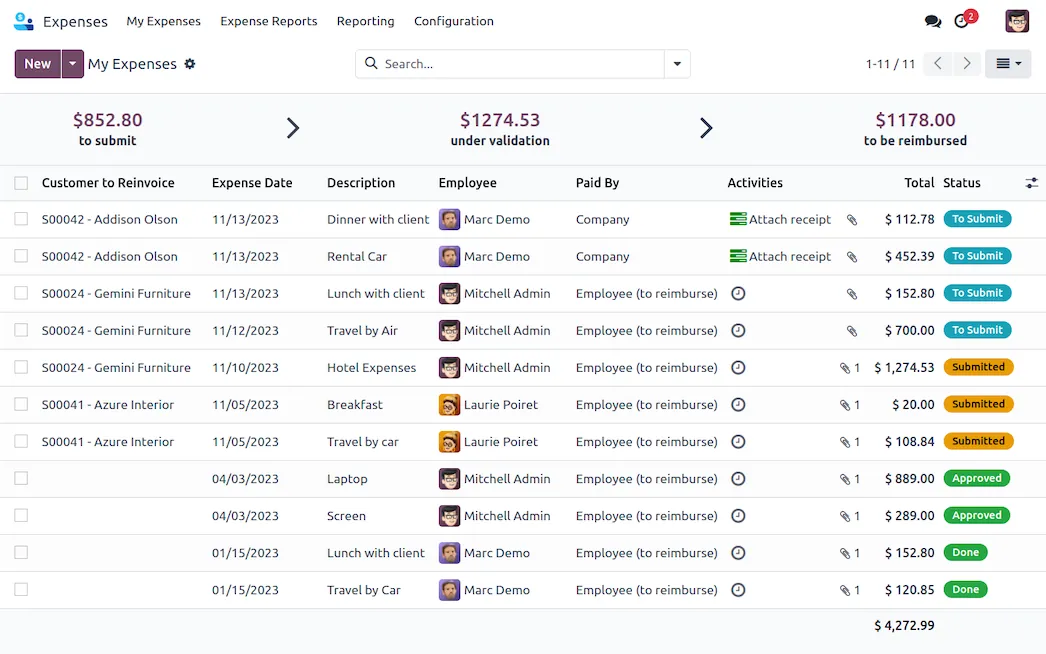
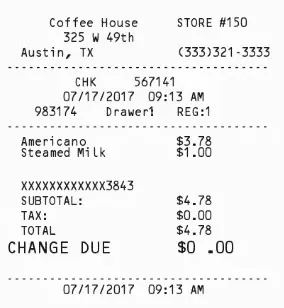
Harness the power of OCR. No more wasted time typing in each receipt detail. Odoo scans each receipt and creates an expense record with the total cost and date, so you don't have to.
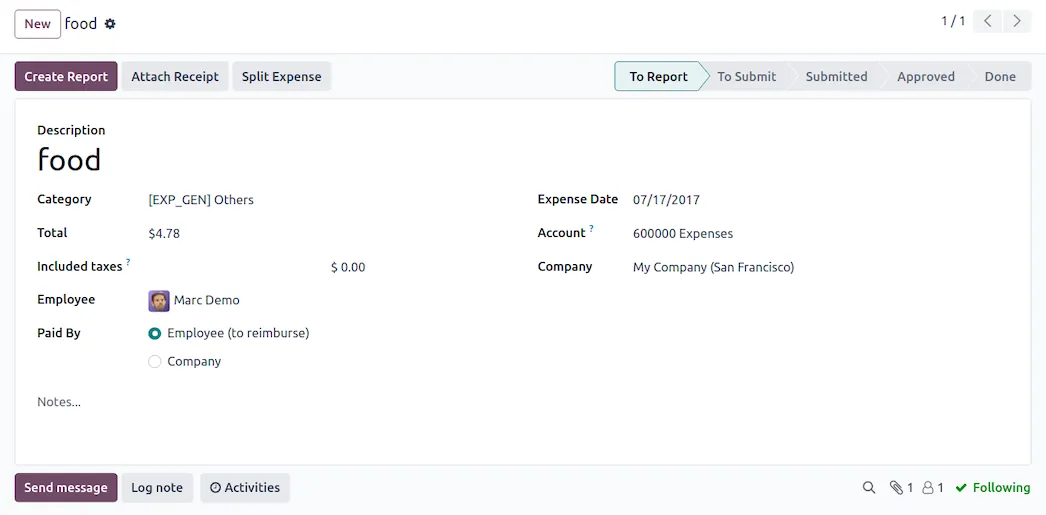
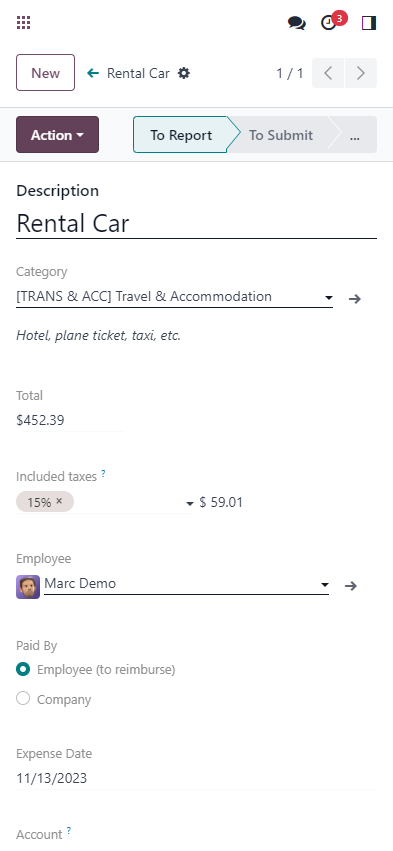
Email, scan, drag and drop, or manual. Add expenses by sending an email using expense codes, scan in a receipt, drag and drop a receipt into the Expenses app dashboard, or manually type in an expense - from your phone or computer!
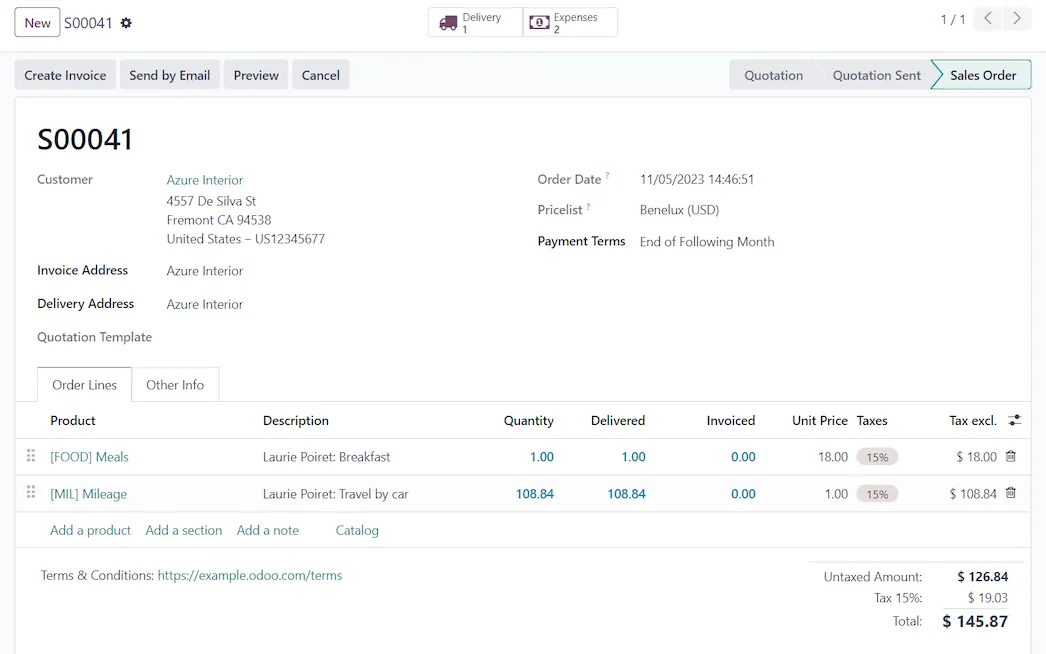
Who should really be paid? Some expenses should be paid for by the client, and others by the business. Specify expenses that should be reimbursed to the employee or reinvoiced to a customer.
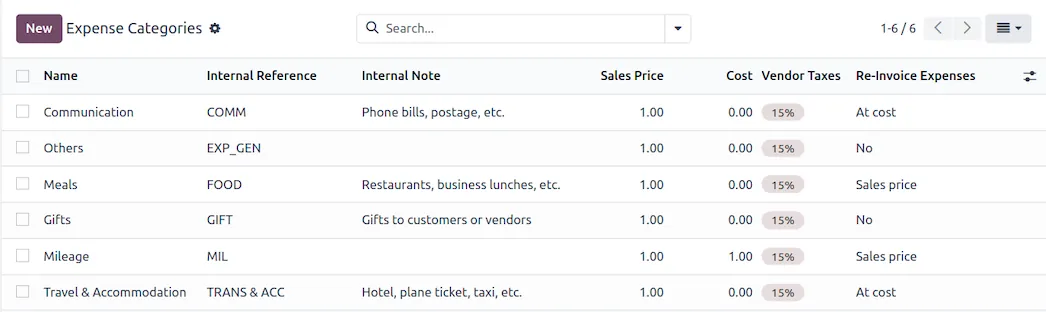
Expense categories are pre-configured! When the Expenses app is installed, a set of pre-loaded expense categories are available so you can start creating expense records right away.
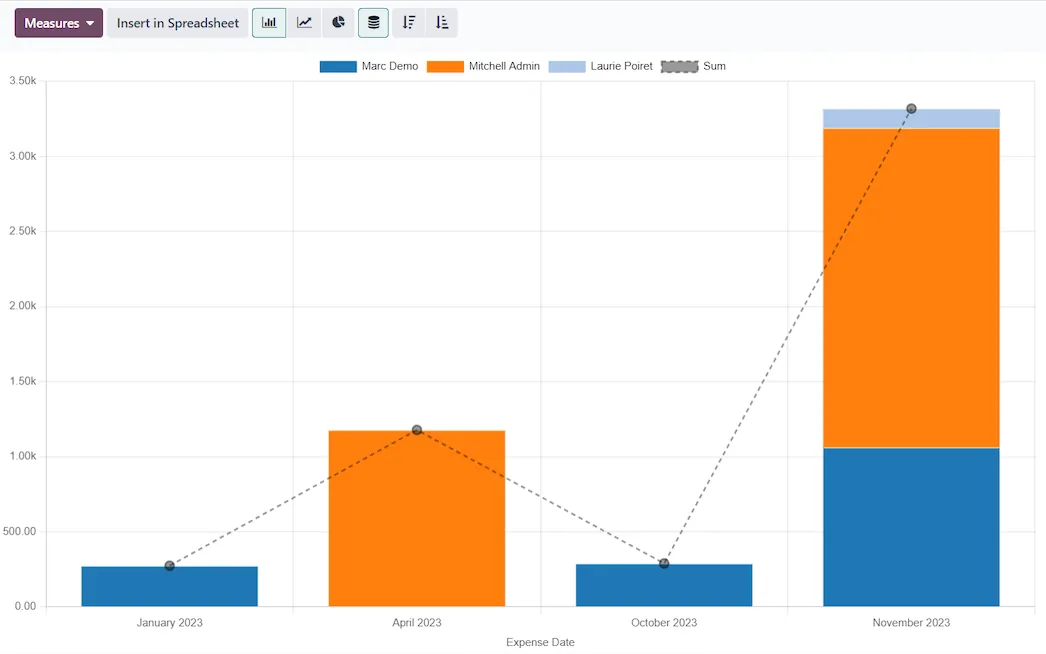
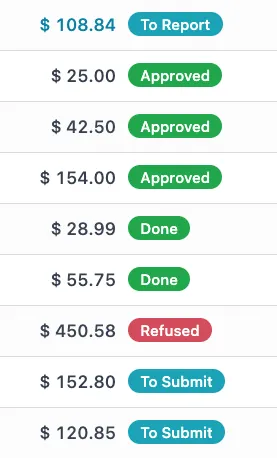
See the data you want! Visualize expenses with customized reports to show exactly the information you need. See expenses by employee, category, dates, and more. Create reports with multiple filters and/or groupings, and favorite them for easy access.
Submit on the goSubmit expenses right from your phone! Whether emailing an expense or uploading a receipt using Odoo's mobile app, never forget to log an expense by submitting receipts on the go, as you collect them!
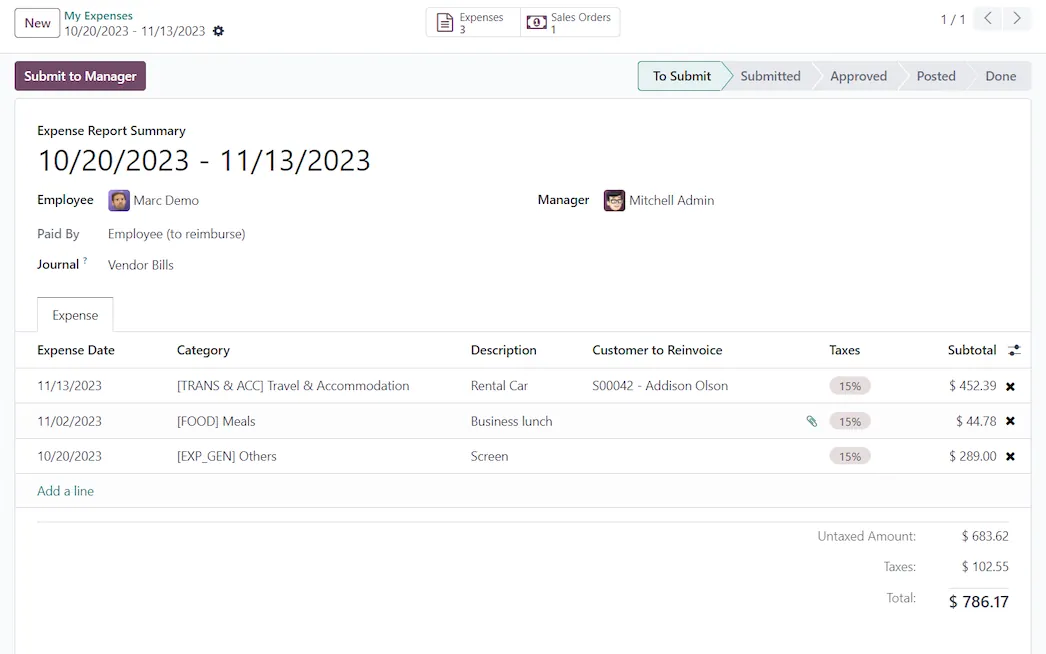
Every expense, one reportStop submitting each individual expense. Place all expenses on one expense report with a click. Submitting a single report is easier for everyone; from the employees submitting expenses, the managers approving expense reports, and the accountants posting payments.
Standard Odoo first. We set it up on a staging database, migrate your data, train your team and stay on after go-live.
For Philippine companies. In the Philippines, approved expenses post to Odoo Accounting with their VAT, so the receipts you claim feed the SLSP purchases list and the 2550Q VAT summary built from your posted entries. Read Odoo in the Philippines and The BIR SLSP and how Odoo exports it.
Spreadsheet (BI)Live pivots and dashboards on Odoo data.DocumentsFile storage with workflows and OCR.SignE-signatures with an audit trail.AccountingJournals, bank sync, tax reports and closing. SalesQuotations, orders and upsells.
 InventoryMulti-warehouse stock, barcodes, replenishment.
Product descriptions, screenshots and videos are © Odoo S.A., reproduced for reference from odoo.com. TechNext is an Odoo Ready Partner; we implement and support Odoo.
Keep the system you run today. Our own experts add Expenses as a plug-in in your system and quote it in writing first.
2027 BIR Audit Guide · sent by our team
Four details. A BIR Compliance Expert sends the guide to your work email within one business day. Inside: the eLA rules, the 10-day document rule, what examiners ask for, and a routine for audit requests.